
Imagine this: someone hears about your business from a friend, sees a flyer, or finds you on social media. Their next move? They Google you. If your Google listing is thin, wrong, or missing that person will move on. If it’s clear, honest, and helpful, they call, book, or walk in.
This guide walks you through everything from the first click to the ongoing care your Google Business Profile (aka Google Listing) needs to bring real customers through your door. No jargon-first approach; just practical steps, real examples, and copyable templates.
What is Google Listing for My Business
A Google Business Profile is a free public page that appears in Google Search and Maps with your name, address, hours, reviews, photos and more. Set it up and optimize it because it’s one of the easiest, most effective ways to get found locally. Follow the step-by-step setup below, then use the optimisation, review and content tactics to convert searchers into customers.
1. Why a Google listing matters
- People expect it. When someone wants a local product or service they usually check Google first. If you’re not there or your info is wrong, they’ll pick someone else.
- It’s a first impression fast. The listing shows your logo, hours, photos and reviews in one place. That’s your digital shop window.
- It helps people take action. Call, get directions, visit your website, book an appointment all from the search result.
- It’s free (but not magic). Setting it up costs nothing. Doing it well takes effort and that effort pays back in leads.
2. Step-by-step: setting up your Google Business Profile (detailed)
I’ll walk you through the setup as if we were doing it together.
Create or pick a Google account
Use a Google account you control (preferably a business account you own, not an employee’s personal account). Protect it with a strong password and two-factor authentication.
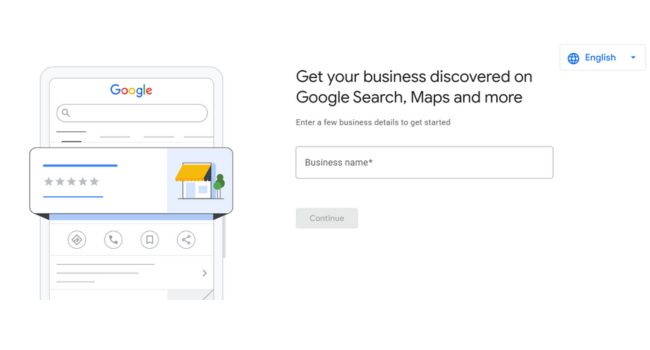
Step 1 Business name
Enter your real business name exactly as customers know it (no keyword stuffing).
Step 2 Choose your business type
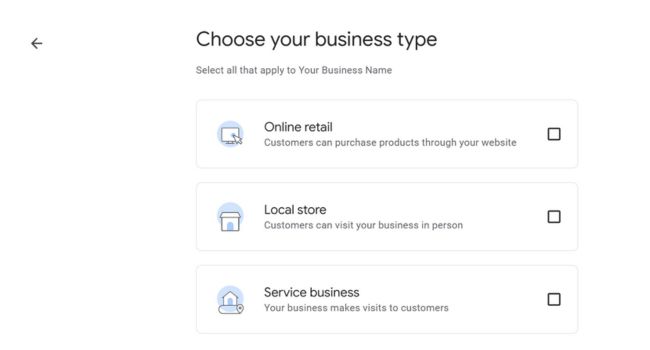
Select all that apply: Online retail, Local store (physical location), Service business (visits/appointments).
Google will ask you to select what type of business you are:
- Online retail – Add your online store/website.
- Local store – Add your shop’s address so customers can visit.
- Service business – Add service areas where you visit or deliver.
You can select more than one (e.g., service + online retail).
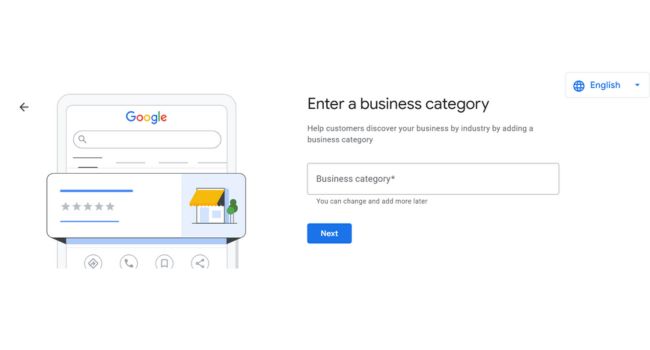
Step 3 Enter a business category
Pick the most accurate primary category (e.g., “Accountant,” “Café,” “Web Designer”). This tells Google what searches to show you in. You can add secondary categories later for specialties.
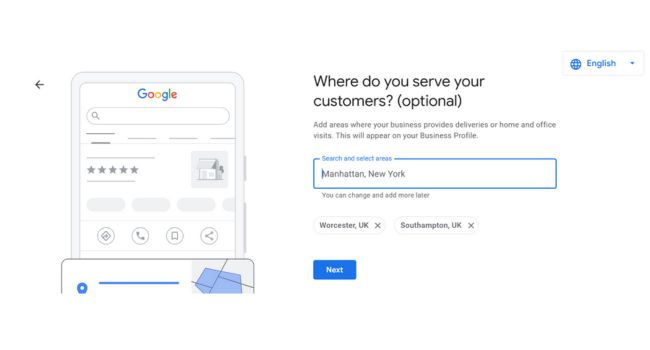
Step 4 Where do you serve your customers?
- If customers visit you: add your physical address so you appear on Maps.
- If you visit customers (plumber, cleaner): you can set a service area.
- If you’re hybrid (store + mobile), show your address and add a service area.
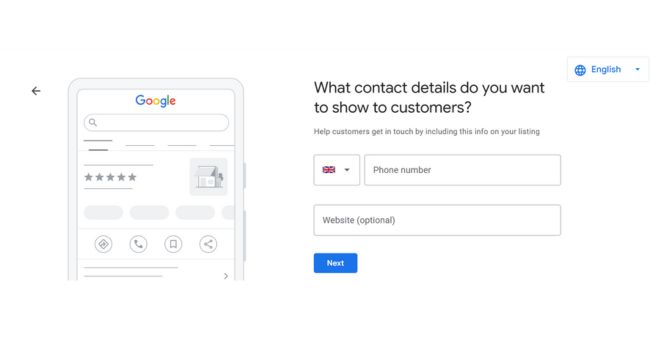
Step 5 Contact details & verification address
- Add phone number(s), messaging option and the URL you want customers to use.
- Enter a mailing address for verification (Google will send a postcard). This address is hidden from the public; PO boxes are not eligible.
- Tip: use a local phone number and keep NAP (Name, Address, Phone) consistent across the web.
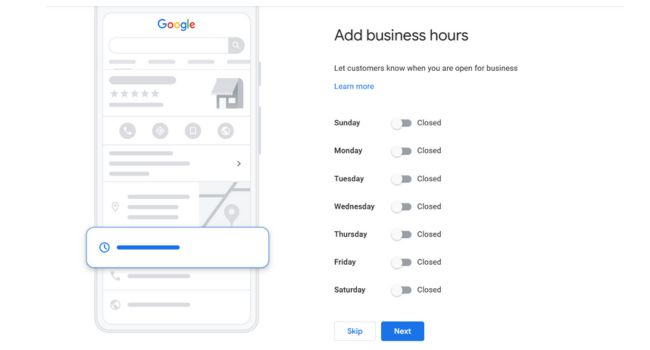
Step 6 Business hours & special hours
- Enter regular opening hours and add holiday or special hours (appointments, emergency availability).
- Tip: mark temporary closures or unusual hours immediately to avoid confusion.
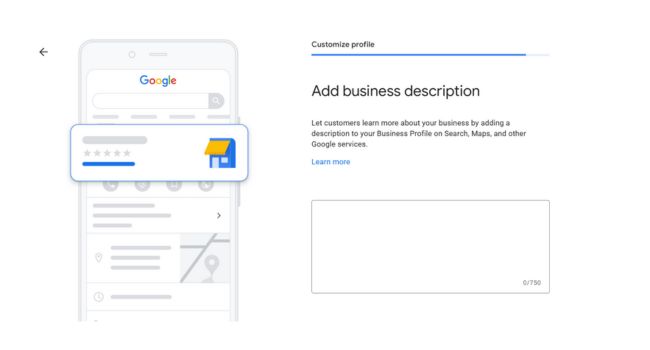
Step 7 Business description
Write a short, human description: what you do, who you help, where, and a clear CTA. Be natural — include one or two keywords but avoid keyword stuffing.
Examples:
- Short: “Blue Markers — Southampton-based digital marketing for accountants. We grow client leads with clear, tested campaigns.”
- Longer: “Blue Markers helps small accounting firms in the UK, UAE and India attract clients through tailored digital marketing: SEO, social ads and content. Book a free strategy call.”
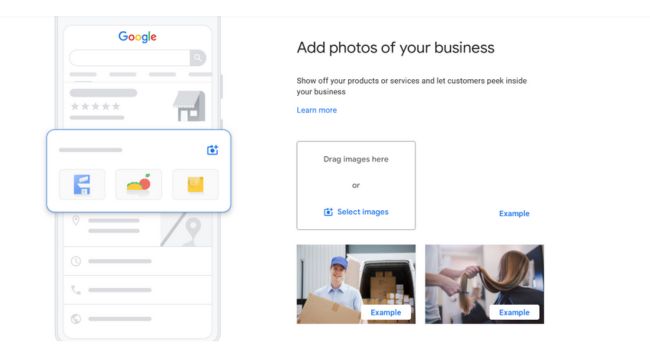
Step 8 Add photos & videos
- Upload a logo, cover photo, interior/exterior shots, product images and team photos. Show your shop, workspace, top products or before/after results.
- Tip: use high-quality, well-lit images and update them regularly profiles with fresh photos attract more clicks.
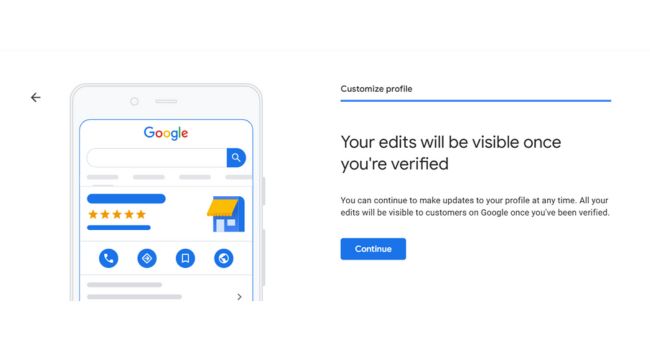
Step 9 Verify your listing (Final step)
- Choose a verification method offered to you (postcard is most common). Enter the verification code when you receive it to claim full control.
- Tip: don’t change critical info (address/phone) while waiting for verification.
Step 10 Optimize & maintain (ongoing)
Respond to reviews, post updates (offers, posts, events), add services/products, answer Q&A, and keep hours/contacts current. Ask happy customers for reviews and use Insights to track what’s working.
Optimisation — what to add and how to write it (so humans + Google like it)
A complete profile gets more trust and more clicks. Here’s how to fill the key sections well.
Business name
Use your real business name (avoid adding location or keywords here).
Business description (short + long)
Write for humans: explain who you are, what you do, and what makes you different — in plain sentences. Include a couple of natural keywords but don’t keyword-stuff.
Short description (1–2 lines): what you do, city, and one benefit.
Long description (2–4 short paragraphs): specifics, tone of voice, services, and a call to action (CTA).
Example short description:
Blue Markers — Southampton digital marketing agency helping small businesses get more leads through SEO, social ads and content.
Example long description:
Blue Markers is a friendly digital marketing agency based in Southampton that helps small businesses grow online. We specialise in SEO, social media ads, and simple content strategies that attract customers without complicated jargon. If you want clear reporting, honest advice, and campaigns that actually convert, book a free 20-minute chat.
Categories & services
Pick one primary category, then add secondary categories and a detailed list of services. For each service, you can add a short description and price ranges (if relevant).
Photos & videos
Photos influence clicks: logo, shopfront, staff photos, product images, before/after galleries (if you do repairs), and short video tours. Keep images bright and real.
Attributes
Choose attributes that fit your business (e.g., “Women-led,” “LGBTQ+ friendly,” “Offers outdoor seating,” “By appointment only”). These help customers filter businesses in search.
Products & menu (if relevant)
Add product names, descriptions, prices and a photo. For restaurants, add a menu. For service businesses, show packaged services.
Business hours & special hours
Be accurate. Use temporary special hours for holidays and events.
Business location on maps
Make sure your pin is in the right spot. If it’s wrong, customers will get lost and you’ll lose business.
Create content on your listing (posts, offers, events)
Your Google profile supports short posts similar to social media:
- Posts (updates, offers, news) — treat them like short social posts.
- Offers — discounts or coupons.
- Events — date, time, description.
- Product posts — highlight specific products.
Use them to announce seasonal offers, new services, or last-minute openings. Post regularly: even weekly or biweekly helps keep your profile fresh.
Example post: New service: VAT filing for freelancers. Fast, affordable help — introductory 20% off this month. Book here [link].
Reviews — the lifeblood of local trust
Why reviews matter
People read reviews to decide who to trust. Reviews also act as social proof and influence ranking in local search.
How to get reviews (ethically)
- Ask at the point of delight after a happy sale or completed job.
- Send a short, polite email with a direct review link.
- Include a review link on receipts and invoices.
Review request template (text/email):
Hi [Name], thanks for choosing [Business]. If you have a minute, could you share a quick review on Google? It helps small businesses like ours a lot. [direct link] — Thanks, [Your name]
How to respond to reviews
Respond quickly, politely, and personally. Even short replies show you care.
Positive review reply template:
Thank you, [Name]! We’re so glad you enjoyed [service/product]. We look forward to helping you again.
Negative review reply template (public):
Hi [Name], I’m sorry you had this experience. We’d like to make it right — please email [contact] or call [phone] so we can help directly.
If a review is fake or violates policy, you can flag it for Google to review.
Q&A and Messaging — let people ask and get quick answers
Q&A section
Visitors can ask public questions on your profile. Monitor and answer promptly; if your customers ask common questions, add them yourself as FAQs (ask and answer) to provide immediate help.
Messaging
Enable messaging so searchers can message you directly. Use quick replies and set clear expectations for response times. If you can’t respond quickly, set an auto-reply telling them when you’ll get back.
Advanced topics (for multi-location businesses and agencies)
Multiple locations
Use separate verified listings for each physical location. Keep naming consistent, and use the bulk upload tool or the Google Business Profile Manager to manage many locations.
Service-area businesses (SABs)
Hide your address if you work from home and instead define service zones (cities, postal codes). Make sure you don’t create a listing for a location where there’s no staff or phone — that can get flagged.
Agency management
If you manage client listings, request access as a manager rather than sharing your Google account credentials. That keeps ownership clear and secure.
Bulk verification & API
Large brands can use bulk verification and the Google Business Profile API for advanced automation. For most small businesses, manual management works fine.
Common problems and how to fix them
Problem: Listing suspended
Common causes: inconsistent info, keyword-stuffed name, fake addresses, or multiple listings for the same location. Fix: read Google’s reinstatement guidelines, correct the issue, and request reinstatement with clear evidence.
Problem: Duplicate listings
Merge or remove duplicates — duplicates dilute reviews and confuse customers. Use the “suggest an edit” or request ownership of duplicates to clean them up.
Problem: Wrong map pin
Edit your address and drag the map pin to the correct location in the dashboard.
Problem: Fake or abusive reviews
Flag them in the dashboard and respond publicly to clarify your side. Keep records in case you need to escalate.
Final thoughts
A Google listing isn’t a one-time task. It’s a living page that reflects your business — accurate info, fresh photos, real reviews and a helpful voice. Treat it like your digital front desk: be present, be kind, be accurate.
People don’t just choose businesses based on perfect marketing copy — they choose businesses they trust. A carefully managed Google Business Profile builds that trust faster than most paid ads.